It started, as these things often do, with a simple request.
A Posterino user wrote in asking whether he could manually crop the images of a Mosaic-Crop — that feature where a single photo is spread across a grid of frames so the whole picture only reveals itself when you step back. A reasonable ask. I figured it would be an afternoon’s work.

It was not an afternoon’s work.
Down the rabbit hole
To let you crop a Mosaic-Crop, I first had to open up the old crop editor and teach it to move several frames at once while keeping the mosaic intact. So I went in. And the longer I sat with that old code, the more I realized the problem wasn’t the mosaic — it was the editor itself.
The old crop editor pulled you out of your document and into a separate mode. You left the page you were composing, made your adjustment in a different context.
I tried to bolt mosaic support onto that. It felt wrong every time. So I made the decision that turns an afternoon into a week: I threw the old crop editor away and started over.
Cropping, in place
In Posterino 6.4, cropping happens directly on the Canvas, right where your image already lives. Double-click an image and a compact Crop Image popover appears next to it. The image stays exactly where it is in your layout, in its frame, in its context — and you adjust the crop in place.

Drag to reposition the photo inside its frame. Use the zoom slider — or just pinch — to decide how much of it shows. Turn the rotation knob to set any angle from 0 to 359°. Press Return when it looks right, or Esc to revert everything and walk away. No mode to enter, no mode to leave. You’re never taken out of your document.
A few smaller touches make it feel grounded: the interaction now shows the bounding rectangle of the image so you get a real sense of its actual dimensions, and rotating or moving always keeps the frame fully covered, so you can’t accidentally expose an empty corner. The reset button is smarter, too — reset before you’ve touched anything and it restores the image the way the Reset Images command would; reset after you’ve started adjusting and it simply returns you to where the crop was when you began.
Guides for better composition
Because the crop now lives on the Canvas, it finally made sense to help you compose while you crop. So 6.4 adds a set of composition guide overlays. Choose one from the popover, or press G to cycle through them:
- Rule of Thirds — the classic grid for placing your subject off-center
- Golden Ratio — spiral divisions at the golden proportions
- Diagonals — diagonal lines across the frame
- Center Lines — simple horizontal and vertical centering
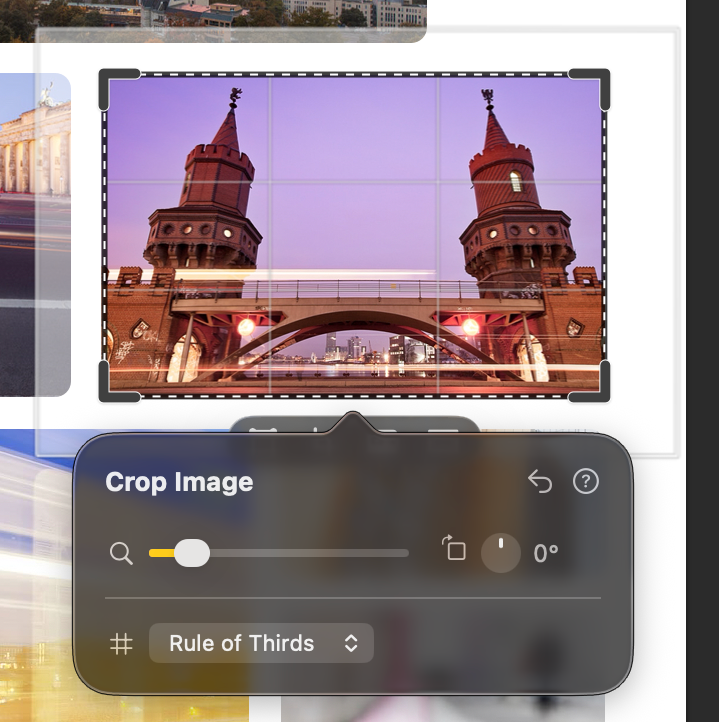
They’re quiet, optional, and exactly the kind of thing you reach for without thinking once they’re there.
Mosaic-Crop, the way it should have always worked
And then, the request that started all of this — which, with the new foundation in place, became almost easy.
Select all the frames that form a Mosaic-Crop, double-click any one of them, and the popover gains a Move selection toggle — already on, ready to go. Now you drag, pinch, and zoom the shared image across all the frames at once. You don’t even have to be precise about the selection — rubber-band your way across the page and sweep up a few unrelated frames if it’s faster. The moment you double-click one of the frames that does belong to the mosaic, Posterino quietly narrows the selection down to just the mosaic’s frames, so the stray ones come along for the ride no further. The mosaic never breaks. Posterino moves the whole composition as one connected unit and won’t let any single frame slip and reveal empty space. You’re fine-tuning the part of the photo that should appear across the entire mosaic — as one gesture, on one image, in one place.

This is the part I’m happiest with. The mosaic itself always assembled perfectly — that was never the problem. The trouble came when an important part of the photo landed right on a seam between two frames. Until now, your only recourse was to nudge the frames around or go back and edit the original image. Now you simply reposition and zoom the whole picture across the mosaic until it sits exactly where you want it. For a feature that’s all about the big picture, being able to direct that picture across every frame at once is a real game changer.
Other improvements of Posterino 6.4
While I was in there, a few related things got attention:
- You can now hide the per-image manual-crop state indicator if you prefer a cleaner Canvas.
- Applying a Mosaic-Crop now resets any existing image rotation, so the mosaic always aligns correctly.
- Frame, background, and text styles now reliably reappear when Posterino restores a project at launch.
- User guide search results now open the correct articles.
Conclusion
I didn’t set out to rebuild cropping in Posterino. I set out to answer one email. But somewhere down that rabbit hole it became clear that the honest fix wasn’t to patch the old editor — it was to replace it with something that respects where your image actually lives.
The new crop experience feels more fluent and more intuitive than before, and for Mosaic-Crop it changes the game entirely. I’m very, very happy with how it turned out. As always, thank you to the user who asked the question that sent me down the hole.

References